 The Scriptable Finder The Scriptable Finder
The Finder in the Mac OS can be controlled using the AppleScript language in the same way as any other application. However, to avoid damaging or losing documents, it should be used with care.
The scriptable Finder can process items on the desktop in the same way as a human user, allowing you to create scripts that eliminate the need for boring and repetitive tasks.
The Finder provides useful, though limited, shortcuts to standard folders. Those supported by the Classic Mac OS shown are shown here, with the results shown in italic:-
tell application "Finder"
apple menu items folder
control panels folder
desktop as alias
extensions folder as alias
fonts folder as alias
preferences folder as alias
shutdown items folder as alias
trash as alias
startup items folder as alias
startup disk as alias
system folder as alias
temporary items folder as
end tell
Remember, the term alias has nothing to do with an ordinary alias. Instead, it provides a fixed reference to an item that remains valid even when the item is renamed or moved.
These terms can also be used to generate a reference, as in this example:-
startup items folder as
--> folder "Startup Items"
The path to instruction, provided by the Standard Additions file in the Scripting Additions folder of the Classic Mac OS, gives a greater range of shortcuts, as shown below:-
path to apple menu
path to application support
path to control panels
path to control strip modules
path to desktop
path to desktop pictures folder
path to editors folder
path to extensions
path to Folder Action scripts
path to fonts
path to help folder
path to modem scripts
path to internet plugins folder
path to launcher items folder
path to preferences
path to printer descriptions
path to printer drivers
path to printmonitor
path to scripting additions
path to shared libraries
path to stationery folder
path to shutdown items folder
path to trash
path to startup items folder
path to startup disk
path to system folder
path to temporary items
path to voices
The word folder can be added to the end of those path to terms that don’t already include it. Some of the terms shown above that don’t include the word folder automatically gain this appendage at compilation, should you fail to enter it manually.
Mac OS X extends the function of the path to command, as in these examples:-
path to preferences folder
path to preferences folder
path to help folder from
and in these shortcuts:-
path to "cusr"
path to "dlib"
path to "favs"
path to "ssnd"
path to "usrs"
Traditionally, the Mac OS employs a : (colon) to separate the elements in a path, whilst Mac OS X can use POSIX paths, in which the parts are separated by a / (slash). You can convert ‘classic’ paths into the newer form using the POSIX path instruction, as provided by the Standard Additions scripting addition in the Classic Mac OS. Here’s an example:-
tell application "Finder"
set theFldr to folder
return POSIX path of
end tell
--> "/Macintosh HD/
AppleScript allows you to refer to the folder or disk that encloses an item, as in:-
set theFldr to folder of alias
--> folder "Extras" of
set theFldr to folder of alias
--> alias
set theFldr to folder of alias
--> "Macintosh HD:
set theDsk to disk of alias
--> startup disk of
set theDsk to disk of alias
--> alias
set theDsk to disk of alias
--> "Macintosh HD:"
Note that the path to a folder always ends in a : (colon), which distinguishes the path from that of a file. If you need the name of a folder or disk you should use the name instruction, as in:-
set theDsk to name of disk
--> "Macintosh HD"
Sometimes, the nature of what encloses a file isn’t known, as, for example, on a network or where a file is at an unknown location. In these situations you can use the term container, as in:-
set theCntnr to container
--> folder "Extras" of
set theCntnr to container of
--> alias "Macintosh HD:
set theCntnr to container of
--> "Macintosh HD:
Note that the above commands always report an error if the file within a folder or container is invisible. Also, any item on the desktop gives a result of desktop of application "Finder".
Fortunately, these lines work even for the invisible items shown here:-
set theFile to alias
--> alias "Macintosh HD:
set theFile to alias
--> alias "Macintosh HD:
set theFldr to alias
--> alias "Macintosh HD:
set theFile to alias
--> "Macintosh HD:System
Sadly, the following don’t work with invisible items, although they’re fine otherwise:-
set theFile to file
--> ‘Finder got an error
set theFile to item
--> ‘Finder got an error
set theFldr to folder
--> ‘Finder got an error
You can check the existence of an item using either of the following:-
exists file "Macintosh HD:
--> true
exists alias "Macintosh HD:
--> true
and you can use the following to check that an item’s on the desktop:-
exists file "Macintosh HD:
--> true
exists file "Document on
--> true
but you can’t refer to such a file as an alias, as in:-
exists alias "Document on
--> ‘File Document on
since the term alias always requires you to include the full path of an item.
Finally, you can include checking for an item in a conditional statement, as in:-
Information about your drives can be obtained using lines such as:-
set sysDskNm to name of
--> "Macintosh HD"
free space of disk
--> 2.422775808E+9
You can also use such information in conditional statements, as in:-
if free space of disk of destFolder
error "There isn’t enough
end if
Files or folders can be selected and processed using references, as in:-
tell application "Finder"
set theFldr to folder
move (every file of theFldr
end tell
--> file "test.htm" of
which, in this instance moves the one file to the Trash. In the Classic Mac OS this can be written as:-
tell application "Finder"
move (every file of folder
end tell
--> file "test.htm" of
where the folder is defined as a path, ending in a : (colon) to indicate that it really is a folder.
Opening a disk, folder or file is very easy, as in:-
tell application "Finder"
open alias "Macintosh HD:"
end tell
which simply opens the window of the drive called Macintosh HD. The terms disk, folder and file can be used instead of alias in such a statement, although they don’t work if the item is no longer at its original location or doesn’t have its original name.
The next Classic Mac OS script opens a folder that resides alongside the file of an application:-
tell application "Finder"
activate
open folder(((folder of
end tell
--> folder "BBEdit Support"
A similar approach can be used to force the Finder in the Classic Mac OS to open a document using a specific application. This example, for instance, opens a chosen file in Netscape:-
tell application "Finder"
open file "****" using
end tell
since MOSS is the creator code for this application.
You can create standard aliases to any item. This example makes an alias in a folder on the desktop:-
make alias to file "Document
-->file "Document on
while this simply creates an alias on the desktop itself:-
make alias to selection at
--> file "Document on
Finally, this example makes new folder inside a selected folder on the desktop:-
make new folder in selection
--> folder "untitled folder"
In this version you also give the folder a name:-
make new folder in selection
--> folder "New Folder" of
Here’s a more complex example that creates a new folder on the desktop containing another folder:-
make new folder at desktop
make new folder at folder
A similar approach can be used to create a file, as in:-
make new file in selection
--> file "Modem Script"
which, in this instance, is an empty modem script document. It’s worth noting that almost any standard attribute can be included in the properties list. However, by default, the file type and creator type attributes in the Classic Mac OS are set to TEXT and ttxt, respectively, which are applicable to SimpleText. If you’re working with documents destined to be used on a Mac OS X machine you may prefer to create files without a specific creator code, as in this example:-
make new file in selection
--> file "Mac OS X File"
where .... represents a string of four null characters. Unfortunately, you’ll need a special utility to get this kind of character onto your clipboard.
The following forms of script can be used to get information about a file or folder, which in these examples is a selected item. The various results that are possible are shown beneath the scripts.
tell application "Finder"
activate
class of selection
end tell
--> alias
--> application file
--> disk
--> document file
--> folder
tell application "Finder"
activate
kind of selection
end tell
--> "alias"
--> "application program"
--> "disk"
--> "ClarisWorks word
The second script gives the text that’s shown in the Kind column of an as List view in the Finder.
You can use the results of such tests in conditional statements, as in these examples:-
if kind of item "****"
if kind of alias "****"
if class of item "****"
if system folder of disk "****"
if free space of disk of
Some of the information that can be read and set is shown below, although errors are reported if you use alias for items on the desktop or if you work with invisible files. Desktop items should be referred to using the file, folder or item style of reference while information about invisible files can be obtained using info for and the alias style of reference.
set theName to name of
--> "Test Document"
set theModDate to modification
--> date "Friday, August 2,
set theVers to version of
--> "n/a"(not available)
--> "Z1-1.3, Copyright Apple
The information given by version or product version is usually only a number. For the full version string you must use the info for command, as supplied by the Standard Additions scripting addition. This also provides other information, as shown below, although the process of extracting the data is slower than the above commands, especially where folders are concerned.
set theVers to info for
--> {
name:"Apple DVD Player",
creation date:date
modification date:date
icon position:{1, 0},
visible:true,
size:3.73198E+5,
folder:false,
alias:false,
locked:false,
busy status:false,
file creator:"ombz",
file type:"APPL",
short version:"Z1-1.3",
long version:"Z1-1.3,
}
The information normally appears as a continuous list, although it’s shown here in a ‘formatted’ style to enhance the appearance. This kind of instruction can also be used for an invisible file, but only if you refer to the file using the alias term. Here’s an example that gets the icon data for a file:-
set theIcns to icon of
--> {class:Icon Family,
large one bit icon:«data
large eight bit icon:«data
large four bit icon:«data
large 8 bit mask:«data
large color icon:«data
small one bit icon:«data
small eight bit icon:«data
small four bit icon:«data
«class s8mk»:«data s8mk…»,
small color icon:«data is32…»
}
where the data is again shown ‘formatted’, with … replacing each long string of data.
The scriptable Finder has control over which applications and processes should be visible or brought to the front. The following script hides all visible applications:-
tell application "Finder"
activate
set visible of (processes
end tell
where the word processes can be replaced by the phrase every process, if preferred. The next script does the opposite, and shows all the applications:-
tell application "Finder"
try
set visible of processes
end try
end tell
However, if you don’t include the try and end try lines this script will report an error as it encounters those applications that only run in the background.
The following script, which would normally be launched via a utility such as OtherMenu or OSA Menu, tells you what application is currently active:-
tell application "Finder"
set frontApp to processes
end tell
-->{process "Script Editor"
Note that the result is in the form of a list, anticipating later versions of the Mac OS that support multi-tasking, allowing more than one application to be at the front. The following variation gives the name:-
tell application "Finder"
set frontApp to (name of
end tell
-->"Script Editor"
Mac OS 8.x and above support a feature known as folder actions, which lets you automatically run a specified script when a given folder is opened or used in other ways. You can attach a script to a folder by Ctrl-clicking the required folder and then selecting Attach a Folder Action. You’ll then see a standard dialogue, which you can use to navigate to the required script.
A folder with an attached script is identified in the Classic Mac OS by a special icon like this:-

although no such indication is provided in Mac OS X, which can lead to some confusion.
Folder actions in Mac OS X are handled by the System Events application, which must be launched and then added to the Login Items list, a process that happens automatically when you run the script that initiates folder actions. In the Classic Mac OS they’re handled by the Standard Additions file, the dictionary of which contains the following:-
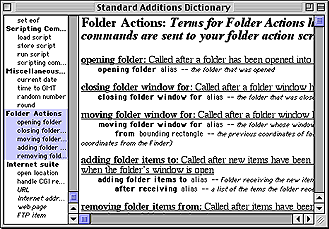
Details regarding these five ‘handlers’ are shown in the following table:-
| Handler | Script |
|---|---|
| opening | folder |
| closing | window |
| moving | open |
| adding | items |
| removing | items |
adding folder items to handler.Here’s an example Classic script:-
on opening folder theFolder
tell application "Finder"
activate
set numItems to number of
set msgTxt to "There are
if numItems = 1 then set
display dialog msgTxt
end tell
end opening folder
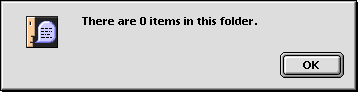
which you’d normally save in the Folder Action Scripts folder. To conform with Apple’s naming convention you could call it open - count items and then attach it to the required folder, as described above. Once this is done you should see a dialogue when you open the folder, such as:-
The syntax for the five handlers is rather cumbersome, as shown in the following table:
| Start | End |
|---|---|
| on | end |
| on | end |
| on | end |
| on | end |
| on | end |
In Mac OS X you can use folder actions to warn you that the contents of a folder has changed, which is what happens when a fax message arrives. To enable this, Ctrl-click the folder used for receiving faxes and choose Enable Folder Actions from the contextual menu. Do this again, this time selecting Attach a Folder Action. Then select the required folder action script, which is called add - new item alert.scpt. Now, whenever a fax is delivered you’ll get an alert.
Here’s a script that backs up documents, as well as the cache folder used by Internet Explorer 5.x in the Classic Mac OS:-
tell application "Finder"
activate
with timeout of 600 seconds
duplicate folder "Documents"
duplicate folder "MS Internet
end timeout
end tell
The with timeout instruction ensures that the script doesn’t quit should the copying process take too long. So, if you’ve got a lot of files you may have to replace the 600 by a bigger number.
The above script can be improved by introducing extra scripting after the activate line so as to check whether or not the backup disk is actually available. It’s also a good idea to clear the contents and empty the Trash on the backup drive prior to doing the backup. The next script incorporates all these improvements, working through a list a folders:-
tell application "Finder"
activate
-- makes a list of items
tell startup disk to set
-- checks the backup disk
set diskName to "Backup Disk"
if not (exists disk diskName)
set theMsg to "The disk
display dialog theMsg
end if
-- clears files off backup
try
delete every item of
empty trash
on error errMsg
display dialog errMsg
end try
-- backs up items in list
repeat with theItem in itemList
with timeout of 600 seconds
try
duplicate theItem to disk
on error errMsg
display dialog errMsg
end try
end timeout
end repeat
end tell
This script illustrates some interesting points. For example, the list of folders has been organised to make it as readable as possible. Note also that each item is described in a ‘shorthand’ form, especially the Preferences folder. In addition, tell startup disk has been used, meaning that the text of startup disk doesn’t have to be repeatedly entered into the list. Finally the use of try statements and dialogues containing a Cancel button ensure appropriate handling or errors.
MacWorld magazine (UK), IDG Communications, 2002-2004
1984-Online, Steve Harris
©Ray White 2004.
