 Applications Applications
An application program, more commonly known as an application, lets you open, modify or create documents that are used in the real world. A utility is a special application that deals with unusual tasks or with problems on your computer.
The Macintosh operating systems prior to Mac OS X are commonly known as the Classic Mac OS, whilst the associated applications are called Classic applications.
Some Classic applications are designed to work on a PowerPC-based computer, a 680x0-based machine or both, the latter type being known as a fat application. What you actually get is often determined automatically during installation, although some installers do offer you a choice.
A Carbonized application, which can be used fully in both the Classic Mac OS and in Mac OS X, employs a reduced set of application programming interfaces (APIs) known as Carbon. These are built into Mac OS X and into the CarbonLib extension that Apple provides for the Classic Mac OS.
 Installing an Application
Modern software is often supplied in the form of an installer application that places the new application and its support files onto your hard disk in the appropriate places. Since things sometimes go horribly wrong, you should always make a copy of the installation software before you start. And if you’re really nervous you should also backup all your other files as well.
If you really don’t want to use an installer, and you know exactly what you’re doing, you should be able to copy the appropriate files from another computer that already has the software installed. In some instances these files may also be found on the application’s installer disk. Those of a brave disposition can of course use Apple’s TomeViewer application to extract individual files from an installer’s archive, assuming that the installer in question uses files of the Apple variety.
Installing software from a set of floppy disks is horribly slow. If possible, always try to get new software supplied on CD-ROM. If you have to use diskettes you’ll find the installer application on the first disk. However, should this be corrupted you won’t be able to perform any part of the installation, so lock the diskettes and make a backup of all them before beginning the installation.
For a faster installation you may be able to copy the diskettes onto your drive, so that they then appear as folders, and then run the installation. However, you may have to drag the installer application itself out of the first folder, or apply other tricks to make this work properly.
Alternatively, if you have Apple’s Disk Copy application (as supplied with the Mac OS) you can create a set of disk image files from the diskettes. These can then be kept on a convenient hard disk drive or on a removable cartridge. When you’re ready to perform an installation you can just double-click on all the image files, the contents of which will then appear on the desktop as if they were standard diskettes. You can then open the first one and proceed with installation as usual.
There are many types of installer, the most common being InstallerVISE (MindVision), StuffIt Installer Maker (Aladdin Systems) and Apple’s own installers. To save disk space, most employ compressed data. If, however, the files are supplied in standard Finder format you can add or replace items by simply dragging them onto your hard disk.
Software may also be supplied in compressed form as a self-extracting archive (SEA), usually of the StuffIt variety, although the older Compact Pro (Compactor) format may also be encountered. An SEA is a special kind of application that contains both the compressed files and the necessary resources to automatically extract the material. SEAs usually have a filename extension of .sea whilst StuffIt archives that aren’t self-extracting have an extension of .sit.
Individual files can only be extracted from an archive by using a suitable application, such as StuffIt Deluxe or Compact Pro. Fortunately, other applications. such as Greg’s Browser and Disk Wizard, can also extract such files, and in a much more convenient manner.
Apple often supply software as a disk image, frequently as an application with a filename extension of .smi or as a document with an .img extension. To get the software you simply double-click on the file and a ‘disk’ appears on the desktop. You can also use Apple’s Disk Copy application to open an image file and write the contents to a real disk or diskette.
Running an installer can be risky, especially if it blindly add files to the System Folder that your version of the Mac OS doesn’t like, or it replaces a later version of a file with an outdated document. Tracking down rogue files is a nasty business, so it’s a good idea to use an application such as Installer Observer to catalogue your System Folder prior to any installation and between subsequent installations. This keeps a record of all of the files, together with date and version information. Alternatively, you can apply a specific Label to all the files in your System Folder and, following the installation, use Sherlock to track down those items that have the wrong Label.
It’s useful to know which files an installer has added to your System Folder, just in case it messes up your machine. You’ll also need this information when you want to finally remove the software from your computer. Some installers actually create an installer log file, a SimpleText file that gives a list of all the documents that were installed. Failing this, all good software providers should include documentation on the subject, although sadly this isn’t always forthcoming.
In some situations, you may end up with two versions of an application on your drive. This may (or may not) cause all sorts of problems, depending on whether each application uses the same versions of support files and other files in the Preferences folder.
An installer usually lets you specify a drive or folder onto which the installation will be made. Once the installation is complete you should find the appropriate folder at your selected location or on the top level of your chosen drive or folder. The should contain the application, documentation and in some cases a number of support files. Some installers also place extra files in the System Folder.
Suppose you’ve installed an application called FerretWriter. The contents of its folder will look something like this:-
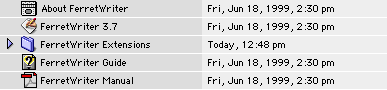
The most common forms of software copy protection involve the use of passwords and registration numbers. In some instances such a registration process is done online, and with some software the application may be restricted to the machine on which it was originally installed.
Some software can only be used with a USB dongle, often of the iLok variety. Although effective, this kind of device is very inconvenient as it removes one of your available USB ports.
Other methods are also used to prevent illicit copying. The most effective systems in the Classic Mac OS modify low-level information on parts of a disk only normally used by the system itself and its disk driver software. This causes read errors when a disk copying program is employed.
Some packages employ an installer application that allows you to make copy a given number of copies of the application from the installation diskette to your drive. You may be able to de-install some copies but the installer remembers the location of each copy. If you try to make further installations you’ll be thwarted. Some people make copies of the original disk as a disk image as a safety backup for their disks, although this trick can also be used to create illicit copies.
A key disk works in a similar way to the floppy disk described above, although the actual software needn’t be on the disk itself. You may have to insert such a disk to start the installation process or whenever you launch the software for the first time after starting the computer.
Applications can be divided into four basic types:-
 Standard Application
This is the kind of application you’re most familiar with. It lets you edit existing material or create something of your own which you can save as a document. Larger applications also require support files, which are kept either in the application’s folder or in a set location inside the System Folder.
 Information Provider
This type of application automatically updates one or more data files whenever changes are made. The files are usually in the same folder as the application, although you may be able to use software such as Default Folder (St. Clair Software) to force the application to save them elsewhere.
 Document Viewer
This kind of application provides resources that allow you double-click on a particular type of document and read its contents. Nothing is gained by launching the application on its own, so you can usually place the application file anywhere on your disk drive. Programs of this type include Adobe Reader (Adobe), Common Ground MiniViewer (Common Ground) and Web browsers, such as Internet Explorer (Microsoft) and Netscape (Netscape Communications Corp).
 Stand-alone Document
This kind of application is usually in your Documents folder. Such a program contains actual data as well as the necessary software for viewing the content. Special applications are only required if you need to create these files yourself.
Common formats include Print2Pict (B Raoult), eDoc (Michel & François Touchot) and DOCMaker (Green Mountain Software). Print2Pict is supplied as a Chooser extension that works in the same way as printer driver, producing bitmap images as a postcard file that’s independent of fonts. eDoc Creator works in a similar way, producing compact documents that are very easy and fast to read, while DOCMaker files can be created using an application of the same name.
For correct presentation, both eDoc and DOCMaker files require the correct fonts to be present in the Fonts folder, inside your System Folder. If you try to view a DOCMaker document without all the necessary fonts it puts up a warning dialogue. However, in some instances you can install the required fonts inside the document itself by means of ResEdit.
Most major applications come with support files that are put in place by the appropriate installer application. A typical installer creates a folder for support files inside the application’s own folder, within the System Folder or inside both. Common varieties of support file include:-
 Documentation
This is often in one of the following forms, although in some cases the documentation is in the application itself:-
This kind of file usually, whose name usually contains About… or Read Me, can usually be opened with SimpleText, as supplied with the Mac OS. Unfortunately, you can encounter files of this kind that are too large for SimpleText to read, in which case you should try using an alternative program, such as Tex-Edit or BBEdit. Other text files created in Unix, Mac OS X, Windows or other operating systems can have odd line endings when viewed in SimpleText.
You can open this type of file using Adobe Reader, formerly known as Acrobat Reader.
These documents, also known as HTML files, can be viewed using any standard Web browser. Simple HTML files can also be viewed using Apple’s Help Viewer, as built into recent versions of the Mac OS, allowing you to include material in the Help Center window, which appears under the Finder’s Help menu (see below). However, you’ll normally need to add extra files to make this work, as described at the end of this document. To try it out just put a folder containing HTML files into the Help folder, inside your System Folder.
You can delete, relocate or rename most documentation files, although renaming of HTML files will cause your browser or Help Viewer to go astray. If preferred, you can put all the documents for your applications inside special folders within a folder called Macintosh Info.
 The Help Folder
As already mentioned, some applications come with a folder of HTML files designed for use with Apple’s Help Viewer application. These folders are normally kept in the Help folder inside the System Folder and should provide an extra entry in the Help Center window. This information may also appear in the Help menu when the application is in use, but this only usually happens if the application has an appropriate Apple Guide file in the same folder as the application itself.
 Balloon Help
Some applications require extra files to enable Balloon Help in the Help menu. These are usually kept in the same folder as the application, although sometimes you can put them elsewhere inside the System Folder. If necessary, you can make the files invisible to prevent them appear in your Apple menu. If you don’t use this feature you can simply throw the files into the Trash.
 Help Applications
Some applications use a help application, sometimes in the form of QuickHelp. Usually, this application and its associated help files must be left in a location that’s acceptable to the parent application. However, if you have multiple copies of QuickHelp, you may find that some applications allow you to replace a QuickHelp application by an alias of another copy at a different location.
 Apple Guide
This type of file, in conjunction with the Apple Guide extension, provides information under the Help menu whenever the application is running. The actual help information may be contained within the file itself, which gives help in the usual Apple Guide ‘step by step’ format, or as HTML files inside a designated folder inside the Help folder in the System Folder.
Apple Guide documents can be seen in the Apple menu, even though you can’t do much with them. If you find this annoying you can can use a file utility to make them invisible. And if you don’t actually like the Apple Guide feature you can simply throw the files away.
 Preferences File
A preferences file usually contains your overall settings for an application. Generally speaking, this kind of file shouldn’t be kept in the application’s folder, although some disreputable products continue this practice. Most well-designed software puts its preferences files in the Preferences folder inside the System Folder, or inside a specially designated folder within the System Folder
 Library
A library file contains programming routines, usually only of the type used by a PowerPC-based machine. In most instances, any library required by an application must be kept in the same folder as the application, or inside the Extensions or Application Support folder in the System Folder.
With modern versions of the Classic Mac OS you can actually put all your libraries in the Application Support folder and organise them into folders. However, such libraries are available to all applications (not just the applications they came with), which in theory could cause problems, particularly if they contains copies of resources that are already part of the system software.
Since installer applications often put libraries in various locations, care should be taken to avoid duplicate files, although in practice this doesn’t seem to cause any problems.
 Plug-In
A plug-in, which is sometimes known as an extension (but shouldn’t be confused with a system extension), can be used to add extra features to one or more applications. Different programs use different forms of plug-in. For example, QuarkXpress uses a type of plug-in known as an Xtension, while PageMaker uses a variety known as an Addition.
In most instances the plug-ins must be in a designated folder with the application itself, although in some programs you’re initially asked for the location of the plug-ins folder, which is memorised for future use. In this instance you might prefer to choose a location somewhere inside the System Folder. For example, for an application called FerretWriter by Ferret Software, you can create a folder called Ferret in the System Folder into which you the files can be placed.
Plug-in folders can be made invisible in you don’t want to see them in the Apple menu. If you don’t actually use the features provided by such files you can simply throw them away.
The list below includes includes applications as well as system additions, such as extensions or control panels that can enhance your Mac experience. When using any system addition you should take care to ensure that it’s suitable for your version of the Classic Mac OS: some of the software described below is unsuitable for later versions of the system.
Although revised, the information shown below was originally compiled in 1987, so may appear rather dated. However, you may find that such software is now available at low cost, or even at no price at all. In addition, the author hasn’t included major applications, such as those produced by Adobe or Microsoft, since these products already have sufficient publicity. Each application is given by a rating of between * and *****, although no marks are given for software that hasn’t been checked.
This creates Portable Document Format (PDF) files suitable for any computer. To see them on a Mac you’ll need Adobe Reader or Acrobat Reader and, in some instances, Adobe Type Manager (ATM). Older versions include the Adobe Sans MM and Adobe Serif MM suitcases for the Fonts folder, as well as the AdobeSanMM and AdobeSerMM PostScript fonts. Unfortunately, PDFs are very slow on older machines whilst some Acrobat products don’t work with ATM GX version 3.7. Related to this, there’s PrintToPDF (James W Walker) a Chooser extension that can make a PDF from any document.
A useful package that replaces most the features previously supplied by the old Now Utilities, package. This includes Action Files, which provides extra options in Open and Save dialogues, Action Menus, which lets you modify the Apple menu or add items to the menu bar and WYSIWYG Menus, which lets you see your fonts in all their glory within the usual Font menu.
Includes the Word for Word application for converting files across 250 different formats.
 Adobe Type Manager (Adobe) **
This control panel prevents the jagged appearance of PostScript fonts on any monitor screen or on a non-PostScript printer. However, to save RAM, you may prefer to convert your PostScript fonts to TrueType versions using an application such as FontMonger or a modern equivalent.
A set of control panels and extensions that enhance the Finder, including SpeedBoost, which lets you copy and trash items in the background, Desktop Viewer, for looking inside files, Shortcut, for enhanced Open and Save dialogues, Magic Menu, for extra control from within the Finder, and Makeover, for document linking, improved icons, control over Balloon Help and other shortcuts. Note that you must have the correct edition of the package to work with your version of the Mac OS.
Converts General MIDI (GM) files into QuickTime movies that can be viewed by means of any QT -aware program, including the humble SimpleText application.
 AppHider (Roland Gustafsson) ****
A useful application that temporarily hides applications. Now, when you open a related document the hidden application isn’t launched but you can choose another via the dialogues provided by File Exchange or Mac OS Easy Open. To restore the application just double-click on its icon.
 Apple HD Setup (Apple) **
Supplied with older versions of the Mac OS for formatting disk drives that are connected to an elderly Mac incorporating a SCSI internal hard disk drive. Apple HD Setup works with some third-party SCSI drives, although other devices require special software. If you have a modern machine with an IDE/EIDE internal drive you should use Drive Setup instead.
 Apple IR File Exchange
As required for sending data via a PowerBook’s infra red (IR) port using AppleTalk, with IRTalk selected in the AppleTalk control panel. The application provides a Sending Status and Receiving Status windows: the arrival of information can also be indicated by means of an alert sound.
This lets anyone use standard Mac applications on an X-Window machine, such as a RISC-based Hewlett-Packard workstation or Sun SPARCstation.
An application that can be used to create interactive documents made up from QuickTime movies, PICT images, text and sound.
 Apple Remote Access (ARA)
Gives you access to an office computer or network via a portable computer equipped with a modem and the Remote Access Client application. Your main computer then appears on the portable as a hard disk drive. Fortunately, in Mac OS 9.x, ARA is built into the Remote Access control panel.
 Apple System Profiler ***
Gives details about your hardware and software, as required when you ask for technical assistance. Sadly, this requires a 68040-based machine or better, so you can’t use it on older machines.
 Apple Video Player (AVP)
This replaces Video Monitor, as supplied with older AV Macs and PowerPC models. You can use this application to watch the output of a TV, a video cassette recorder (VCR), TV camera or Laserdisk on your Mac, but only if your monitor is set to at least 16 colours. The Autotune option determines a preset channel for each device and lets you lock it with a password whilst Edit Channel lets you fine tune or name each channel.
The application works with NTSC or PAL TV signals and stereo or mono sound, using off-air or cable sources. AVP has sound controls for balance, bass and treble plus picture controls for brightness, sharpness, contrast and colour. It can capture pictures and movies and store them on your hard disk using QuickTime compression — and it plays MPEG movies as well.
 AppleCD Player ****
A neat application, supplied with the Mac OS, for controlling an audio CD in your Mac’s CD-ROM drive, now overtaken by iTunes. Before using this, check that the Audio CD Access and Apple CD-ROM or Apple CD/DVD Driver files are in the Extensions folder, inside the System Folder. Sadly, such extensions supplied with Mac OS 7.6.1 or later don’t work with non-Apple drives. If you have such a drive it’s worth trying an earlier version of this file. If this doesn’t work either you’ll have to use the software supplied with your drive: however, this may not let you use AppleCD Player.
Within AppleCD Player you can enter track names for each CD, which automatically reappear next time you insert the disc. Similarly, the Program button memorises your preferred playback order: required tracks should be dragged from the left-hand side to the Playlist on the right.
You can click on the clock to switch between remaining time and elapsed time.
A number of useful keyboard shortcuts are available:-
| Key | Function |
|---|---|
| Delete | Stop |
| Spacebar | Play/Pause |
| Enter | Play/Pause |
| ⇡ or ⇣ | Adjust |
| ⇠ or ⇢ | Jump |
| ⌘-E | Eject |
| ⌘-Z | Leave |
| Tab | Selects disk name |
| Tab | Press |
 AppleWorks (Apple) *****
Formerly ClarisWorks, this can be used for word processing, spreadsheet, database, drawing and painting. The Claris XTND System, unfortunately not supported in version 6, provides numerous file translations. Also, prior to version 6, the package includes a communications mode, allowing you to transfer files via serial ports or over a modem to another computer.
Creates slide presentations that can include QuickTime movies.
 Battery Recondition (Apple)
A utility that completely drains PowerBook batteries, letting them recharge to full capacity. It takes over two hours, so use overnight to be ready by morning. If you run it more than once a month it puts up a warning. Note that four types of battery are used: Nickel Cadmium (NiCd), Type 1 NiMH, Type II NiMH and Type III NiMH. If you install a replacement you should make sure it’s the right type.
 BBEdit (Bare Bones Software) ****
A powerful text editor with extensive options, including support for HTML creation. Particularly suitable for programmers or anyone who needs to work on really big text files.
 Can Opener (Abbot Systems) ****
This extracts text, pictures or sounds from any file, even a corrupted document.
 CalcWorks (John Brochu) ****
Huge calculator for almost everything, including all sorts of conversions: you won’t find a better one.
 Chipmunk Basic (Ronald Nicholson) *
Adequate and free application for exploring the BASIC programming language.
A useful extension that lets you use almost any printer with a Mac that has traditional serial ports. You’ll almost certainly need an RS-232 to Centronics adaptor as well.
This extension that lets you click inside a folder window behind a traditional Open or Save dialogue, forcing the dialogue to move into the folder that you’ve clicked on.
Saves the contents of your clipboard as a clippings file, which is useful for applications that don’t support drag and drop.
 Compact Pro (Bill Goodman) *
An outdated application that can be used instead of StuffIt for data compression.
A useful utility for dealing with awkward extensions and control panels.
An application that uses special methods to retrieve lost files from a hard disk drive.
A multi-track audio recording application that synchronises with Metro, a MIDI sequencing application, or with a QuickTime movie file. Macromedia also produce SoundEdit 16.
 Default Folder (St. Clair Software) ****
Useful control panel that lets you choose a default folder in which to save document for each application. Life can be difficult without this or Action Files.
 Desktop Secure Delete (Aladdin) **
An application, supplied with certain Aladdin products, that totally destroys the selected files on a disk by overwriting them. Very useful if security is important.
 Dialog View (James W Walker) *****
Excellent control panel that customises the size and appearance of traditional Open and Save dialogues, making them bigger than the size, which was originally chosen to suit the Mac Plus.
 Disk Charmer (Fabrizio Oddone) ****
Superb diskette formatting application with options for verifying disks or maximising their size.
 Disk First Aid (Apple) ****
Supplied with the Mac OS for fixing minor hard disk problems. If it doesn’t work the first time just keep trying. You could try another disk utility, but there’s no guarantee that will work either!
 Disk Wizard (François Pottier) ****
Neat application that catalogues the contents of disk drives or diskettes and extracts the files as well. It even works with the StuffIt Engine file to get the contents of compressed files.
 Disinfectant (Northwestern University) *
Superb application, now sadly obsolete, that checks drives, CD-ROMs or diskettes for viruses. It includes an extension to warn you of any infections.
 DiskCopy (Apple) *****
Diskette copying application that can also store disk images on your hard disk.
 DiskDup+ (Roger D Bates) ****
A diskette copying application with comprehensive options, including the ability to create disk images on hard disk. It copies any readable diskette, using formatting systems such as Apple A/UX, Macintosh Filing System (MFS), as used in older Macs, and Hierarchical Filing System (HFS), as used in modern Macs. It uses RAM and disk space to reduce the number of passes.
Background utility that continuously optimises your hard disk.
 DiskLocker (Olivier Libra) ****
Useful utility that uses software to lock any disk or diskette. This lock is provided in addition to the standard hardware lock provided on the media itself.
An important application that can reconstruct the directory on your hard disk, preventing any future problems. Can also be used to optimise a drive.
 DOCMaker (Green Mountain Software) **
This application can create stand-alone documents that can be read on any Mac. Specific fonts can be installed in the final document using ResEdit or DragRes.
 DragAnyWindow (Alessandro Levi Montalcini) *****
A useful control panel that lets you drag any window, including those without a title bar. Unfortunately, some applications don’t redraw the background after you move a window.
 DragRes (Green Mountain Software) ****
A handy application that lets you transfer resources from one file to another. Very useful if you want to add specific fonts to a self-reading document.
 Drive Setup (Apple) *
The standard disk formatting application for drives connected to a Mac that has an IDE/EIDE internal drive. It supports a wide range of drive types, including externally-connected SCSI drives.
 DropSegment (Aladdin) ***
Files dropped onto this application are automatically divided into handy diskette-sized segments. These separate parts can be rejoined at the destination computer.
 DropStuff (Aladdin) ***
Files dropped onto this application are compressed using the StuffIt Engine file. This program is supplied in the StuffIt Deluxe package and with other Aladdin products. Note that older versions of this application are incompatible with Mac OS 9.x while newer versions of this application create files in a different format that can’t be understood by older StuffIt applications. Later versions create StuffIt X files, with a .sitx extension, requiring a new version of StuffIt Engine for unstuffing.
 DropZip (Aladdin) ***
Any file dropped onto this application is compressed by the StuffIt Engine file into a Zip document, which is a popular PC format. Registered users of DropStuff can also use this program.
 eDOC Creator (Michel & François Touchot) ****
A Chooser extension, forming part of the eDOC™ Package, that allows you to create a compact self-reading electronic document from within any application. Exceptionally useful for distributing most kinds of material to other Mac users. Everyone’s computer must have the required fonts, although it’s possible to install these into the document itself using ResEdit or DragRes.
An application that enables extensions, fonts or items in the Apple menu.
 Excalibur (Medieval Ventures) *
A neat spelling checker that can be used with many applications.
A tiny replacement for the Finder file that lets you to have a small System Folder on a diskette.
 File Assistant (Apple) ***
As supplied with older versions of Mac OS on PowerBook machines. The program synchronises the contents of two folders, automatically or as instructed, operating over a network (even with a pair of Macs connected via a printer cable) or via hard disks or floppies. This application is replaced by the File Synchronization control panel in more recent versions of the Mac OS.
 File Buddy (Laurence Harris) **
A useful utility for modifying file attributes and for other chores. You can also create drag and drop applications to automatically modify batches of files.
A versatile relational database that can be used instead of Helix Express, 4D or Omnis.
 FileTyper (Daniel Azuma) ***
An application that changes the attributes of any file. It comes complete with MakeAutoTyper, an application that creates drag and drop AutoTypers for modifying files.
 FileView (DataViz) ****
A drag and drop application that shows a file’s type code, creator code, kind (such as RTF for a text file containing a Rich Text Format document) and a preview of its contents. This useful utility is supplied with MacLinkPlus, although later versions don’t include the preview feature.
An application for creating musical transcripts. It can also be used to play your musical productions via real MIDI instruments when used with the Open MIDI System (OMS).
 Find File (Apple) **
This application, which is replaced by Sherlock in later versions of the Mac OS, runs when you select File ➡ Find or press ⌘-F while in the Finder. Pressing ⌘-Shift-F activates a simple search, as used in earlier versions of the Mac OS, in which case you must press ⌘-G to see further items.
Find Files’s shortcuts are listed under the Help menu. For example, to search your startup drive you can drag your drive’s icon onto the Location pop-up menu or you can press ⌘-1. You can also press ⌘-2, ⌘-3 and so on for your other drives. The number of choices can be expanded or contracted as required. For example, by Shift-clicking on Fewer Choices or pressing ⌘-Shift-R you can reset Find File to its single-choice setting.
Choosing Use full descriptions for found items creates a detailed sort, but takes longer. Using the following keys instead of selecting Find or while clicking on Find have the following effect:-
| Key | Option |
|---|---|
| ⌘-Return | Status bar during |
| Shift | Doesn’t search on |
| Option | Fast ASCII search |
Find File includes invisible items in its search, such as the Desktop file and hidden system components, although you tamper with these at your peril. Other items that you highlight in the ‘found’ window can be processed as follows:-
| Action | Effect |
|---|---|
| ⌘-P | Prints selected |
| Shift- | Moves multiple |
| Shift | Moves single item |
You can also print a highlighted item by selecting Print Item. If you press Option at the same time Find File is forced to quit automatically at the end of the process.
 Flash-It (Nobu Toge) *
A useful control panel that captures all or part of a screen image. The result can be copied onto the clipboard, saved as a PICT image file or printed.
Views, prints and provides information about the fonts contained in your Fonts folder. It also converts between Mac OS and Windows versions of TrueType fonts.
An FKEY for extra printing options, including fractional spacing.
 Font Gander (Hugh Johnson) ****
An exceptionally useful application that lets you examine fonts in detail before or after installing them in the Fonts folder on your machine.
 FontMonger (Ares Corporation) *****
Version 1.0 of this application, circa 1991, still works on the author’s machine. It can modify the characters or keyboard layout of any PostScript or TrueType font and convert fonts from one format to the other. You can even convert a TrueType font that doesn’t work into one that does.
Adds forward delete function to a small keyboard, although this may not work in some applications.
 Gatekeeper (Chris Johnson) *****
Sadly no longer available, this excellent extension/control panel combination can be invaluable at detecting Trojan Horse viruses. It vetoes any dubious activity, although you can extend its exceptions list to allow normal operation of your software.
 GhostScript (Aladdin) **
A free application for viewing PostScript files and converting them into PICT or TIFF images.
 GraphicConverter (Thorsten Lemke) *****
A very impressive application that can open, modify and save virtually any graphics file, whatever computer it came from.
 Graphing Calculator (Apple)
A PowerPC application that evaluates an equation and shows the result in graphical form when you select Evaluate in the Equations menu. For complex calculations you can select Show Full Keyboard. Enter your equation for y on the left and for x on the right, with lower case letters for variables. You can use < or > instead of = to obtain a shaded graph.
 Greg’s Browser (Gregory D Landweber) ***
A very useful navigational tool for working through files and folders, including invisible items.
Supplies invaluable information for upgrading the RAM in an older Mac or Mac clone.
 HDToolkit (FWB) *****
Powerful disk tools, including HDT Primer that can format almost any drive on the planet, including optical disks. It comes with HDT Prober, a useful utility for mounting any awkward SCSI drives. You should check the version of this application to see if its suitable for your system.
 HexEdit (Jim Bumgardner and Lane Roathe) ***
A useful application that can be used to inspect both the data and resource fork of any file. Unlike ResEdit, the resource fork is shown as a continuous list of codes, rather than as resource types.
 HTML Viewer (Sassafras Software Inc) **
A handy utility for viewing simple HTML files. Unlike some older HTML applications, this lets you copy styled text from its windows to another application.
An extensions management utility that checks for any software conflicting with your system. It relies on a database supplied by other software manufacturers.
 HyperCard (Apple) **
A rather curious but very powerful application that produces documents made up of cards. It incorporates a useful scripting language known as HyperScript.
 Home Page (FileMaker) **
Formerly known as Claris Home Page, this application lets you create your own Web pages. Reasonably powerful but dated, although suitable if you’re a newcomer to HTML.
Useful extension and control panel that solves that slightly irritating problem in earlier version of the Mac OS where icons belonging to extensions and panels dropped down the screen during startup.
Intuitive movie editing application supplied with some computers, now available directly from Apple. Apparently, this application can also be used on machines that don’t have FireWire ports, even though this is usually necessary for transferring video data in and out of the computer.
Formerly known as Anarchie, this is the traditional FTP client application for use on the Internet.
Also known as AICK, this contains all you need to reach Internet with an older version of the Mac OS. Includes vintage versions of Netscape Navigator and Claris Emailer Lite.
 Internet Explorer (Microsoft) *****
A surprisingly comprehensive and intuitive application that’s the default Web browser in Mac OS 8.1. Unlike some browsers, it works with Apple’s MRJ form of Java. It also lets you copy styled text from a Web window into other applications, unlike older versions of Netscape. However, owners of a 680x0-based machine may find early versions Netscape far less demanding on hardware.
 iTunes (Apple) ****
A highly versatile and impeccably-designed application for playing MP3 tracks, audio CDs, MIDI tracks and other audio files. Can also convert QuickTime-compatible files in MP3s.
Slick application that opens GIFF, JPEG and PICT files, with or without QuickTime. It also includes a neat slideshow feature. Once widely used for viewing files on the Web.
 Keys! (Stefan Kurth) *****
Superb but dated control panel that lets you to select any button or radio box in a dialogue by pressing ⌘ and the appropriate letter underlined in the dialogue, although this doesn’t work in applications with non-standard dialogues. When used with later versions of the Mac OS the keys still respond correctly but the underlining isn’t shown on the screen.
 Key Caps (Apple) *
Provides a preview of each character that’s generated by each of the fonts that you have installed in your Fonts folder. You can copy characters from the display and paste them into documents. It comes free with the Mac OS, although PopChar is much better.
 KeyQuencer (Binary Software) *****
A comprehensive package that lets you trigger macros from your keyboard and much more. Can also be used in conjunction with OtherMenu.
 Language Kits (Apple)
For working with Japanese, Chinese, Cyrillic, Hebrew or Arabic scripts.
 Launcher (Apple) *
A special control panel that reveals a window containing buttons that you can click to launch an application. If you want to use Launcher regularly you should put an alias of it in the Startup Items folder. Newer versions of the Mac OS provide Button View, which is similar, although Launcher is more versatile in that you can use buttons to open items in any folder.
 Lime (D Blostein & L Haken) *
Elderly musical score application that works with MIDI via MIDI Manager and PatchBay (Apple).
 MacCheck (Apple) **
Rather dated application that checks your hard disk directory and presents a huge amount of information about your Mac.
 MacLinkPlus (DataViz) ****
Provides numerous file translators for the File Exchange control panel, known as Mac OS Easy Open in earlier versions of the Mac OS. In older versions of this package the translators are also accessible to applications that use the Claris XTND System.
 MacsBug (Apple) **
A low level debugger file that should be placed in your System Folder. It’s can be invoked by a key combination or automatically by a crash. This utility can damage your system if misused.
 MacTools (Central Point) **
An older alternative to Norton Utilities that includes CP TrashBack, for recovering files from the emptied Trash, CP Undelete, for rescuing lost files, CP Optimiser, for optimising disks, CP FastCopy, for copying diskettes and CP Backup, for routine backups.
 Macintosh Memory Guide (Connectix) ***
A stand-alone document with everything you need to know about upgrading your Mac’s memory.
Special application for playing PC-based ASF files, also known as DirectShow or NetShow files.
 Memory Mapper (R Fronabarger) ***
A useful utility that shows the contents of your memory in graphical form.
 MenuChoice (Kerry Clendinning) **
An alternative to Apple’s Apple Menu Options control panel that uses less memory, gives extra options and is less likely to clash with other software.
 MindExpander (MindVision)
An alternative to StuffIt Expander that can rapidly decompress StuffIt 4.5 files as well as BinHex, MacBinary (I, II and III) and most kinds of Zip files.
 Monitor (Mark Alldritt) ***
A utility that shows how memory and disk space is being used as time progresses. Handy for finding the cause of a progressive memory leak.
 Myrmidon ****
Clever Chooser extension that lets you create an HTML file for the Web from any document.
Latest in a long line of Netscape products for browsing the Web. As expected, it’s a comprehensive application, with full support for e-mail and more. It also includes Netscape Composer, which lets you create your own Web pages. Unfortunately, Netscape uses an incredible number of files.
A set of powerful utilities including Disk Doctor, for fixing disk problems, Speed Disk, for manual disk optimisation, File Saver, for file recovery and Floppier, for making image copies of diskettes. Older versions of this application are incompatible with the Mac OS Extended form of disk formatting, otherwise known as HFS+, which is used in newer editions of the Mac OS.
 Now Contact (Now Software) ***
Flexible contact manager that creates letters and prints envelopes. You can even select your favourite contacts directly from the Finder’s menubar while newer versions also work with a Palm organiser.
 Now Up-to-Date (Now Software) ***
Highly customisable calendar and organiser that links into the Now Contact application by means of Apple Events. Newer versions also work with a Palm organiser.
Includes Now Menus, for customising the Apple menu and showing actual fonts in menus, Startup Manager, for managing system extensions, and Super Boomerang, which provides fast access to files and folders via standard Open and Save dialogues. Note that this software is not suitable for newer versions of the Mac OS and has been replaced by Action Utilities.
A widely-used but rather cumbersome package that includes Entourage (for email, calendar and contacts information), Excel (a spreadsheet application), PowerPoint (for presentations), and Word (for word processing).
An object-linked environment for the Mac OS, whose development came to a sticky end. To create a new document in OpenDoc you simply double-click on a stationery file. To add functionality to a document belonging an OpenDoc-compatible application you just drag a stationery icon onto the open document. The stationery files are normally kept in a Stationery folder at the top level of your drive.
Apple’s Live Essentials Kit includes editors for text, image and sound files and viewers for standard file types. Future versions were planned to accommodate object parts as used in Microsoft’s Object Linking and Embedding (OLE) system.
 OSA Menu (Leonard Rosenthol) ****
A simple extension that adds a special menu in the menu bar from which you can launch compiled AppleScript files. Different scripts can be provided from within each application by organising the scripts into appropriate folders within the Scripts folder, inside the System Folder.
 OtherMenu (James W Walker) *****
Excellent extension that creates a pull-down menu at the far right of the menubar. It can be set up in the same way as the Apple menu and can launch special mini-applications or FKEY resources. Brilliant when used with KeyQuencer.
 Outlook Express (Microsoft) ****
A neatly packaged e-mail and Internet news application, sometimes supplied with Internet Explorer.
 Photoshop (Adobe) **
The standard application for editing bitmap images.
A QuickTime video editor that needs lots of RAM, at least 800 MB of hard disk space and a video capture card. Sound and pictures are usually captured in separate passes prior to editing. Note that this application has been discontinued for the Mac OS, although it’s still available for Windows.
Combination of a cable and software for connecting over a thousand different types of PC printer to a Mac OS computer.
 Print2Pict (B Raoult) ****
A very handy Chooser extension that prints to the clipboard or creates a PICT, TIFF or postcard file. It can also provide a screen preview to match your own printer.
 Printer Defaults (John Rawnsley) ****
An application for modifying the default settings in a printer driver, also known as a Chooser extension. Sadly, such settings can be overridden by an application that uses its own defaults.
 PopChar Pro (UNI Software Plus) *****
Excellent control panel that creates a menu of all current font characters in your menu bar at any time. Just select the one you want, without worrying about key combinations.
 PowerPCheck (Alessandro Levi Montalcini) ***
Checks which applications on your Mac OS computer contain PowerPC-native code and can remove such code from the application files to save disk space on an older machine.
Allows a standard MIDI sequencing application to play those nice instrument sounds found in the QuickTime Musical Instruments file. Very useful if you need to work on a sequence and you don’t have any MIDI equipment. It requires Apple’s PatchBay application as well as the Apple MIDI Driver and MIDI Manager files in your System Folder.
Another entirely outdated QuickTime movie player.
 QuicKeys (CE Software) ****
A popular macro utility for launching applications or a complex sequence of actions from a single stroke of the keyboard.
A QuickTime player that lets you assign each MIDI track in a movie to an instrument in the QuickTime Musical Instruments file.
 QuickTime Player (Apple) *****
This application, formerly known as MoviePlayer, is a deceptively simple but powerful QuickTime movie player. You’ll need to register QuickTime Pro to use all the features provided in recent versions of this application, or you can use MoviePlayer 2.5 with a later installation of the QuickTime package. Additional plug-ins are also available for MoviePlayer 2.5.
A control panel that makes the Close command act as Quit in specific applications. This can be useful if you keep running out of RAM or if someone simply doesn’t understand the way a Mac works.
 RAM Doubler (Connectix) ****
A dream come true for Macs that can’t accommodate extra RAM. It doesn’t slow down the machine, although it clashes with some games applications. However, if you have Mac OS 8.5 or higher it has few advantages over Apple’ s own Virtual Memory system, supplied as part of the system itself.
RAM Doubler uses the Memory Management Unit (MMU) fitted inside non-PowerPC Macs that have a 68030 processor or better. It requires at least 4 MB or more of hardware RAM and your machine must be able to use and be set to work with 32-bit addressing. You should also make sure the version you’re using is updated to match your version of the Mac OS.
It doubles memory by:-
Only the last process really affects speed. RAM Doubler uses file mapping on a PowerPC to reduce the memory needed by each application, and doubled RAM is still available.
 Real Eject (M R Weinstein & D C McGloin) *****
Eliminates those greyed-out disks that skulk about your screen after you select Eject in Mac OS 7.x or earlier. Now Eject actually ejects and puts away the icon. Not required for Mac OS 8.x or higher.
 ResEdit (Apple) *****
An invaluable utility for examining or modifying the resources in a file. You should alway use this application with extreme caution and always work on a copy of any file.
A useful utility that searches for text within documents.
Creates an archive of a selected file or folder using a one-step process. Although extremely powerful the user interface is rather peculiar to say the least.
A simple text editor, particularly suitable for working on PC text files.
A free font-editing application.
 ScrapIt Pro (John V Holder) *****
Makes you wonder why Apple bother with their Scrapbook. This can store imported pictures and text, and you can edit the text within it. To keep you organised each entry can have its its own name.
 Screen Ruler (Jesse Carneiro) ***
Shows a vertical or horizontal ruler on your Mac screen, calibrated in pixels and other units of measurement. Very useful.
 Script Editor (Apple) ***
Supplied with the Mac OS as part of AppleScript, this application lets you edit your own scripts. The results can be saved as stand-alone applications.
 SCSIProbe (Robert Polic) ****
An essential utility for checking and mounting SCSI devices.
 Sherlock (Apple) ****
This application, and the updated version known as Sherlock 2, replaces Apple’s original Find File application.With Sherlock 2, you can look for a given text at specific areas on the Internet, using chosen search engines, as well as on your own hard disk drive. The search engines are defined by the files in the Internet Search Sites folder, inside your System Folder. If you index a volume, or a given folder on your volume (such as Documents), you can also search for text within the indexed files. Better still, you can save the criteria used for a search and then recall it at a later time.
Sherlock can be used as the default search engine for your browser. Just open the Internet control panel and click on the Web tab. Now activate the Search field and enter a path to Sherlock, such as file:///Macintosh%20HD/
You can also use Sherlock as a backup system. Simply search for all the files modified today and then save this criteria. Each day you can double click on this file and then drag the files that have been found onto your backup disk.
 SimpleText (Apple) ***
This application, supplied with the Mac OS, accepts styled text in TEXT or ttro (read-only) documents, as well as images in PICT files and other formats. Unfortunately, it can’t open files containing both TEXT and PICT resources unless the document has been specially prepared for it.
The program can record 24 seconds of sound or can speak text from a file if the Speech Manager extension is present. It can play QuickTime movies, which can also be opened on the desktop if they have a creator code of ttxt. SimpleText also supports QuickDraw 3D and can open a Portable Digital Document (PDD), as created by the obsolete QuickDraw GX mechanism.
 SimpleSound (Apple) ***
An application that plays and records sound files, including standard alerts in the System file.
An application that opens the Slide Show document found on any Photo CD, providing a small preview image of each photo. You can copy a chosen photo or open it with another application.
 Snitch (Mitch Jones) ***
A control panel that adds extra information to the Get Info window. It includes editable file attributes, dates and previews.
Handy application for recording and editing snd resources.
 SoftwareFPU (John M Neil)
A special control panel that lets you run an old application requiring a 680x0-based FPU on a machine that doesn’t have one. Essential for using such software on a PowerPC-based machine.
Elderly utility that converts sound files of any kind to another type.
 SoundApp (Norman Franke) ****
Neat application for opening and converting sound files.
Powerful sound manipulation and editor application, complete with useful effects to apply to your own sounds.
 Speed Doubler (Connectix) *****
A useful set of extensions that can be used in combination with RAM Doubler, consisting of:-
You should ensure that you have the correct version of this package for your edition of the Mac OS. If you have Mac OS 8.5 or higher the advantages of Speed Doubler are reduced.
Not an actual application but an open standard, devised by the University of Berkeley, that allows you simulate both analogue and digital electronic circuits. The standard is supported to a greater or lesser degree by several applications.
 SpotOn (MacPEEK) ***
A disk formatting application, accompanied by a disk cache control panel that can be adjusted to suit your kind of work. A special extension is available for auto-mounting removable drives that are formatted with SpotOn. You should only need to use this kind of application if your disk drive isn’t supported by Apple’s Drive Setup or HD Setup applications.
Application that creates a special document that automatically opens two or more other items at once.
Widely used file compression application, available in different versions at various prices. The Deluxe version lets you open or create archives via the Finder. Most users will only need the freeware StuffIt Expander (see below), although DropStuff is also very useful. Note that older versions of StuffIt applications are incompatible with Mac OS 9.x and that newer versions of StuffIt also create files in a different format that can’t be understood by older StuffIt applications. Version 7 or higher creates StuffIt X files, with a .sitx extension, requiring a new version of StuffIt Engine for unstuffing.
 StuffIt Expander (Aladdin) ***
This freeware application can decompress any standard compressed files that are dropped onto it. It’s supplied as part of StuffIt Deluxe and is also provided with other Aladdin products. Older versions of this application are incompatible with Mac OS 9.x. Version 7 or higher is required for unstuffing StuffIt X files, which are identified by a .sitx extension.
 Style (Mario Piovanelli) ***
A neat alternative to SimpleText that uses less memory and works in conjunction with the Claris XTND System. It can’t open PICT image files directly but PICT elements can be in the text.
A useful utility if you need more than 128 font suitcases in your Fonts folder. The fonts are put into designated groups so that you can select them at any time.
 Symbionts (B Kevin Hardman) **
An alternative to Apple’s Extensions Manager that gives extra information about how much memory is used by all those lovely add-ons. It can also provide an alternative display during start-up
 TattleTech (Decision Maker’s Software) ***
Tells you all you need to know about a Mac’s hardware and software.
 TechTool (Micromat Computer Systems) *****
A free application that zaps your PRAM or rebuilds your desktop in the proper manner. Also gives you extra information about your machine. If you need to do more you should get TechTool Pro.
 Tex-Edit (Tom Bender) *****
A full-featured and scriptable text editor that’s better than SimpleText but not as technical as BBEdit. Unlike BBEdit, it also supports styled text.
Powerful and effective text recognition software at a very reasonable price.
 Tome Viewer (Apple) ****
Very useful application that lets you look inside an installation tome file, the kind of file used by Apple for installing the system and other software components. This let you select a specific item which you can then extract without actually running any installation software.
An FTP client application for use on the Internet.
 TTConverter (Chris Reed) ****
A useful application for converting Windows TrueType (.ttf) font files into Mac OS font suitcases. The results may need adjusting with FontMonger or a similar application.
 TypeIt4Me (Riccardo Ettore) *****
Truly wonderful control panel that lets you type abbreviations that are automatically converted into whole words. You really can’t do without this.
Alternative to Apple’s Find File application that can also search for text inside the files within a folder or volume, and much more. Now rather overshadowed by Sherlock.
Highly acclaimed and low-cost speech dictation system.
 Virex (Dr Solomon Software) ****
Very effective and fast-working virus detection software.
PC emulation software, said by some to be easier to use than Isignia’s SoftWindows. The Windows version is more expensive than Virtual PC for DOS, although you can install the cheaper package, create a new drive image and tell it you’re to install a system such as Windows 95. You must then start the virtual machine and insert the appropriate Windows installer CD. If the OS requires a floppy disk and you don’t have a floppy drive you can drag a floppy disk image to VPC’s floppy disk icon.
System addition that lets you see the real shape of fonts in Font menus, although the menu may be slow on some computers. Useful if you can’t use Now Utilities or Action Utilities.
Popular word processing application, also available in a free version, although unfortunately this particular edition doesn’t work with Mac OS 9.x.
 WorldTime (J David Sexton) ****
Neat control panel that shows times of day across the world. It adjusts your clock to suit the daylight saving arrangements at your location, although recent versions of the Mac OS do this anyway.
Apple’s Help Viewer application, provided with later versions of the Classic Mac OS, lets you view help documents in the form of HTML files. The Help Center, under the Help menu, provides a list of topics, each of which is kept as a separate folder inside the Help folder within the System Folder. To add an item to these topics you should proceed as follows:-
<html>
<head>
<title>FerretWriter Help
<meta name="AppleTitle"
<meta name="AppleIcon"
<meta name="robots"
</head>
<frameset cols="475,100%"
<frame src="main.html"
</frameset>
<noframes>
<body bgcolor="#ffffff">
<p>This page is designed
Netscape's Frames
which do not support the
</body>
</noframes>
</html>
where main.htm correspond to the name of the top-level HTML file in your folder. Depending on your documents you may need to use two <frame src entries, one for a right-hand frame, the other for the left.
If you have installed the AppleScript Guidebook you’ll find inside the folder of the same name a file called bkfr.html. Its content is similar to the above — just make a copy of this file and adapt it to suit your own entries in the Help Center.
TEXT.<meta name="AppleIcon" line in the bkfr.html file.Note: Most properly-produced help folders also contain subfolders, each containing a special file whose filename ends in idx. These files provide indexing, allowing you to search for keywords that you’ve entered at the top of the Help window. Although folders without such files can still be viewed you won’t be able to search in these files for a keyword.
©Ray White 2004.
