 Documents and Backups Documents and Backups
In times of crisis you need to be able to get to your documents quickly. In addition you must also back them up. You’ll soon come to appreciate this after some bitter experiences!
 The Documents Folder
The Documents folder should contain most, if not all, the files you’ve created. Such documents usually contain information about the real world, such as accounts, letters or other records. Files that contain material to enable you to do things are often best kept in a separate folder called Resources.
Some applications, notably HyperCard and FileMaker Pro, automatically save your files as you work. Unfortunately they can also save your mistakes as well, replacing a valid file in the process. So before modifying an important file you should duplicate it and then work on the copy.
If your Mac crashes whilst saving a file the document concerned is likely to be damaged, possibly beyond repair. Fortunately, some applications produce a Recoverable files or Rescued items folder, either in the Trash or in the System Folder. When you restart your computer you may find a usable version of your file in one of these folders, although you shouldn’t rely on this feature.
When you enter a save dialogue in an application the machine defaults to a specific folder. This is set by the Documents setting in the General Controls control panel, as shown below:-
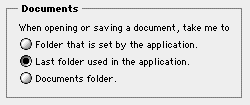
Generally speaking, the default setting is rather more flexible than Folder that is set by the application. Choosing Documents folder can cause fill this location with a chaotic mass of files. Curiously enough the system always remember to use the folder that was originally the Documents folder, even after you’ve created a new folder called Documents at the top level of the drive.
If you find Apple’s system inadequate you can add extra software, such as Default Folder, which directs the Open and Save dialogues in the current application to an assigned folder.
Here’s an example of how you can split up the Documents folder:-
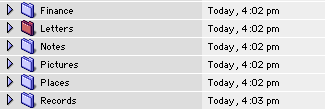
As always, the folders are best named according to function. If you find it inconvenient to have newly saved files in with these folders you can add an extra folder called New Files. You can then use Default Folder or an equivalent utility to direct the appropriate applications to this folder instead.
If you’re lucky, each folder should contain less data than one of your backup disks. You can then perform a daily backup, either by dragging the folder onto a disk or by using a synchronisation utility such as the File Synchronisation control panel or some other kind of backup utility.
 Folders and a Backup Strategy
As you do more work you’ll eventually need to add extra folders to the top level of your drive. In doing so, you should consider whether they contain files that need to be backed up. As a suggestion, the folders listed below should exist on your drive, or can be added as required. Depending on the amount of information, you may want to put some of these folders inside the Documents folder.
Although you may have the installer disks for your applications it’s still advisable to create at least one backup of this folder. After all, it takes a lot of time to reinstate all your applications in exactly the way that you want them.
A backup of this is essential. You should have at least two backups, preferably via different methods so as to allow for failures in software or hardware. For example, you could copy each subfolder onto a separate removable disk and save the whole folder onto a hard disk drive using a backup utility.
This can be used for read-only information that you don’t need to modify, divided into subfolders such as General, History, Languages, Philosophy, Religion and Science. In most instances these documents originate from a CD-ROM that you still have, so they won’t need a backup.
This is for read-only information about your Mac and can be divided into subfolder for Manuals and Help. The latter can contain problem-fixing information, including desk accessories (DAs) such as KeyCaps, files giving keyboard shortcuts or error numbers and even the Macintosh Memory Guide. Most of these files also originate from CD-ROM so they won’t need a backup.
This isn’t just a dumping ground for difficult files. It’s actually an area for files that are in transit to or from your removable disk drive. It can also be used as the preferred location for files that are expanded by means of Aladdin’s StuffIt Expander or compressed using DropStuff. Such files shouldn’t spend much time in this folder and therefore don’t need a backup.
This folder can be used for documents that enable you to do things. It can be divided into two groups of subfolders: creative items such as Stationery, Clip Art, Fonts and Icons; and technical items such as Macro Editor, ResEdit, Scripting, Test Results and Extra System Files. Since these files can take a long time to create you should ensure there’s at least one backup.
If things go wrong you can install a new System Folder using your Mac OS Installer software. But it’s a good idea to make a backup anyway so as to avoid the need to set up all your files again. And remember, the System Folder contains numerous preferences files, some of which are used to enable applications for which you’ve entered a registration number.
You could also consider using the following folders, whose names are prefixed by • (bullet) to make them appear below other folders in your list:-
This contains copies of old records or other information that’s so important you feel safer with another copy. You should only back up this folder when new files have been added to it.
This contains copies of applications or extra software. Such files are best kept in the form of StuffIt self-extracting archives or as Disk Copy disk images for the following reasons:-
You should only need to back up this folder if it you don’t have copies of the files elsewhere.
 Backup Techniques
Making a backup of documents seems a chore until, having lost your data, you begin to see it in a different light. And it’s a good idea to back up your Applications (Mac OS 9) folder as well. After all, there’s little point having the documents without any applications to open them!
Most people instinctively make a periodic backup at the end of each day, but this really isn’t good enough. In fact, you should use at least two sets of backup disks. The daily backup set should be updated every day whilst the weekly backup set should be updated at the end of each week. In some situations you may even want to use a monthly backup set that’s updated once a month.
You can make a backup by simply copying folders to the destination drive or by running a special application, such as a synchronisation utility or backup utility. Most types of backup utility can be instructed to automatically update a specific backup set at the required time.
The benefits of removable media can’t be overstated. Although diskettes are cheap you’ll need far too many of them to store a useful amount of information. The Zip and SuperDisk formats are adequate for routine backups, but for greater capacity and higher reliability you should consider optical media, such as a magneto-optical (MO) drive, although Compact Disc (CD-RW) is preferable.
The following backup methods can be used:-
The simplest way to backup a folder is to copy the whole thing onto another drive. Unfortunately this isn’t without risks, since all the files are replaced, even those that you haven’t modified since the last backup. So if the backup operation goes horribly wrong, or if the newer version of a file is corrupted, you may end up actually destroying some of your information.
Special system extensions can be used with older versions of the Mac OS to minimise the problem. Speed Copy, which is part Speed Doubler (Connectix), has a Speed Replace feature that only copies those files whose modification dates are later than those on the backup disk and removes items that have been deleted, ensuring that the backup is exactly the same as the original. SpeedBoost, part of Aladdin Desktop Tools, is similar but doesn’t delete files on the backup drive. This gives extra security since the backup contains both deleted and modified files, but can be confusing.
The benefits of both of these enhancements are threefold:-
File synchronisation ensures that files contained within specific folders are automatically updated on a second disk drive. Most utilities allow synchronisation to begin:-
Apple’s File Synchronisation control panel provides useable basic features. However, for more sophisticated facilities you should consider Synchronize! (Qdea) or a similar utility.
A backup utility works in a similar to a file synchronisation but usually provides greater flexibility in choosing which files are to be copied to the backup drive. Most types of utility can automatically provide a backup at a specific time of day or day of the week, or even at startup or shutdown.
In most utilities you choose the files or folders you want to backup and then save this information, together with other preferences and the type of backup in a setup file. When you come to do an actual backup you simply open this file and begin the backup process.
In most instances the backed up data is kept in one large file whose contents is only understood by the backup utility. However, some utilities do let you to make backups as standard files, allowing you to recover the data without the backup utility. The following options are often kept in a setup file:-
Essential for storing any amount of material on a small drive or diskette. The amount of space you’ll save depends on the files themselves. In general, applications don’t compress as well as documents.
Puts the data onto the backup drive as standard files. This option isn’t provided by all utilities and by its nature usually prevents the use of compression.
Lets you lock unauthorised users out of your backups. The data is not modified, so this option doesn’t slow down the backup process.
Prevents unauthorised users from opening your backup file without the appropriate password.
Common types of backup include:-
All of the selected items are backed up onto the backup disk. This global backup method is the safest form of backup, although it could endanger existing files if an error occurred.
Replaces those selected items that have been modified since the last backup, whatever type of backup that was. There’s some risk of losing backups altogether if something should go wrong in the process. To add confusion, some applications call this an incremental backup.
Backs up those selected items that have been modified since the full backup. Only the original files created during the full backup and the last updated versions are retained. This means that the backup file doesn’t expand significantly after the first differential backup.
Backs up selected items that have been modified since the last backup, whatever type of backup that was. All of the original files created at the full backup as well as all of the files from all incremental backups are retained. Hence the required space expands at each incremental backup. This lets you recover all versions of a file, and is sometimes known as an archival backup. Most utilities use a history file that keeps track of the various files and their editions, which can be used to restore data should you need to do so. Some utilities also let you record the history file onto the backup disk (as well as the source drive) so that files can be recovered even if the history file gets deleted from the source drive.
©Ray White 2004.
